 Importing ReefCloud data into MERMAID
Have photo quadrat data annotated in ReefCloud? You can import these directly into MERMAID using Easy PQT to have all your data in one platform.
Important: Make sure that your project is not a test / demo project and that you are an Admin of that project. |
Steps to import ReefCloud data into MERMAID

Step 1: Prepare your project in MERMAID Collect
Before importing data, your project needs to be set up in MERMAID Collect:
Set up a new project (or check that you have an existing project ready for the data import):
Add your organization(s).
Add users and assign their roles.
Set data sharing policies.
Add sites and management regimes associated with the data you are importing.
Read more in Setting up a project.
Step 2: Export data from ReefCloud
Export your data from ReefCloud using the steps below:
Navigate to your ReefCloud project > Export point classifications.
Scroll down and uncheck the “Only Include Human Annotatable Points” option (checked by default), if necessary, or leave it as is.
Click Export. An email with a link to download the zip file will be sent to your registered email address.
Important: You can leave the “Only Include Human Annotatable Points” checked (default) to download the human annotatable points only, or uncheck it if you want to download the human- and machine-annotatable points. Learn more in Export your ReefCloud data. |

Step 3: Open MERMAID Easy PQT
Navigate to the MERMAID Easy PQT
Easy PQT will prompt you to authenticate using your MERMAID credentials.
After login, choose ReefCloud as the provider you are using to annotate your PQT data, then a list of your active projects will be displayed under MERMAID project.
Note: Only non-test or demo projects will appear in the Select a project dropdown. |
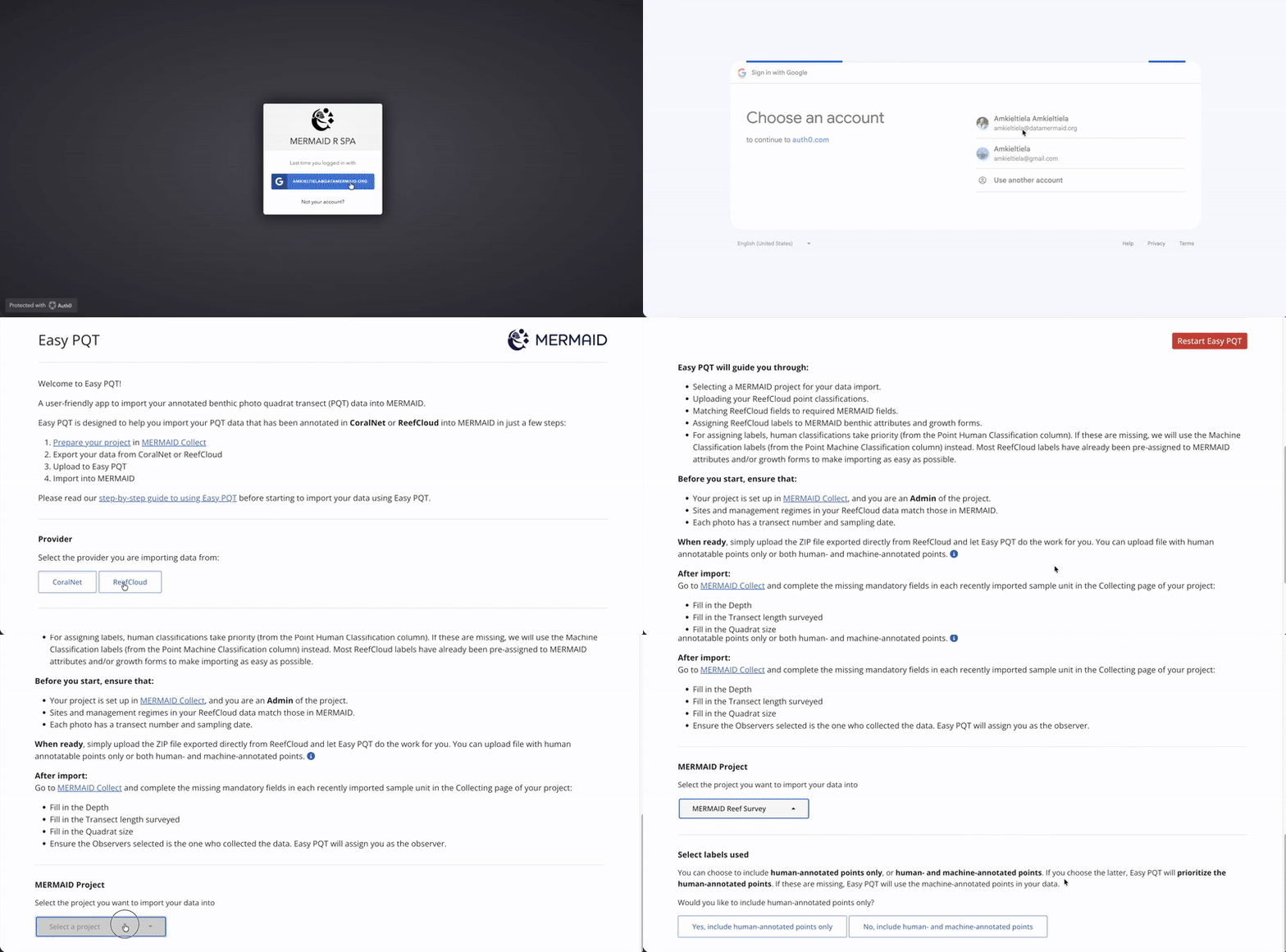
Step 4: Choose the points you want to include
Choose:
“Yes, include human-annotated points only” - if your data contains only the human-annotated points, or
“No, include human- and machine-annotated points” - if your data contains both human- and machine-annotated points (the total number of points per quadrat will always be 50 points)
Learn more about point sampling in Set up your project in ReefCloud, under the “Defining your point sampling approach” section.
Important: MERMAID Easy PQT will prioritize human annotations (from the “Point Human Classification” column). If these are missing, we will use the machine annotations (from the “Point Machine Classification” column) instead. |
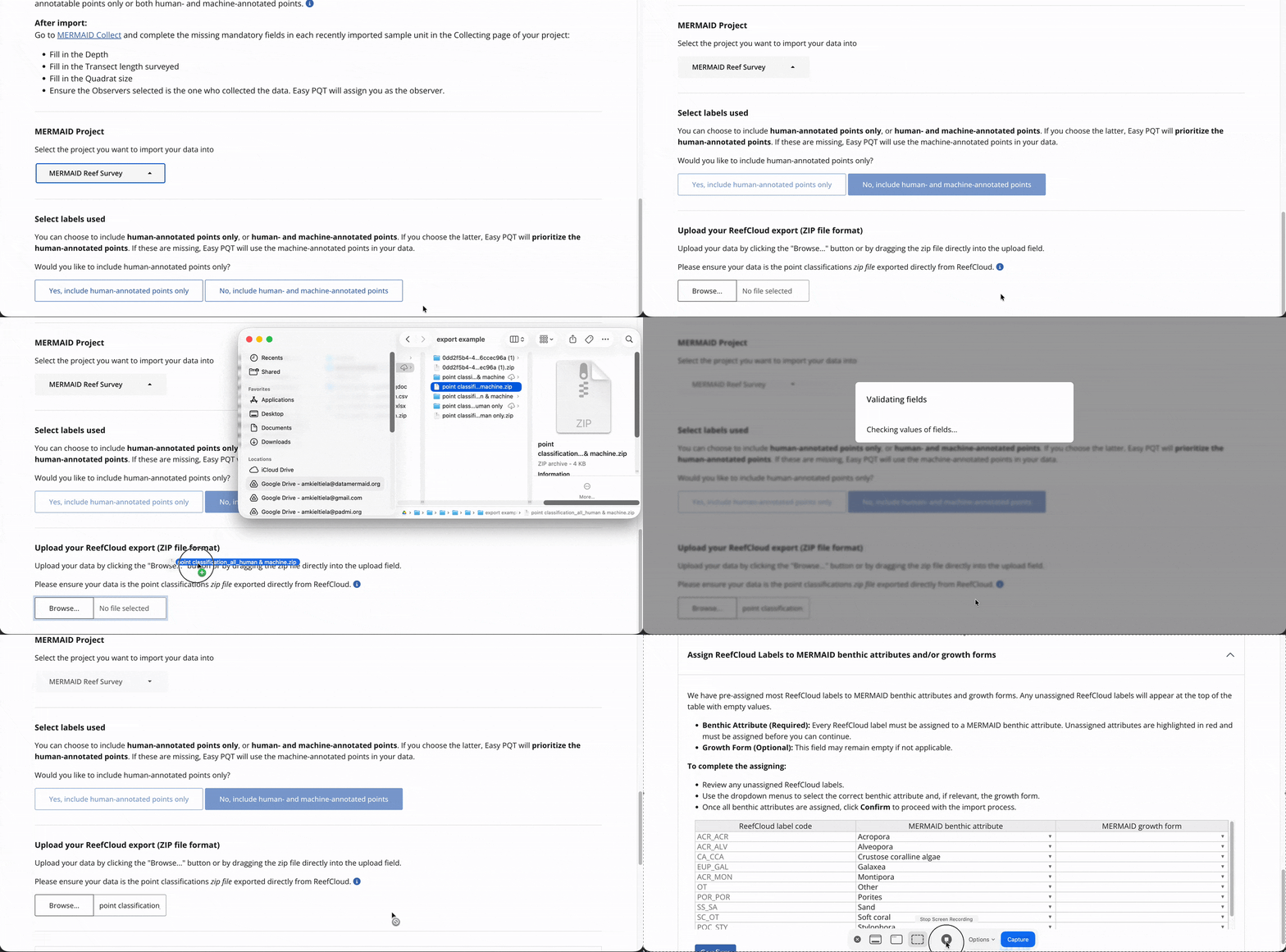
Step 5: Upload exported file
Select the project you want to import your data into.
Upload your file by clicking Browse or drag and drop your file into the upload modal. Only a ZIP file exported from ReefCloud will be readable by Easy PQT.
Step 6: Assign ReefCloud labels to MERMAID benthic attributes
MERMAID Easy PQT automatically assigns ReefCloud labels to MERMAID benthic attributes and/or growth forms. Human annotations take priority (from the “Point Human Classification” column). If these are missing, then the machine annotations (from the “Point Machine Classification” column) will be used instead.
Any unassigned values appear in red at the top of the table. Click and type or use dropdowns to assign the correct benthic attribute and/or growth form.
Note: You can leave the MERMAID growth form column empty, but the MERMAID benthic attribute is a required field. |
Once all of your labels are assigned and reviewed to valid MERMAID benthic attributes, you can click Confirm to continue the importing process.
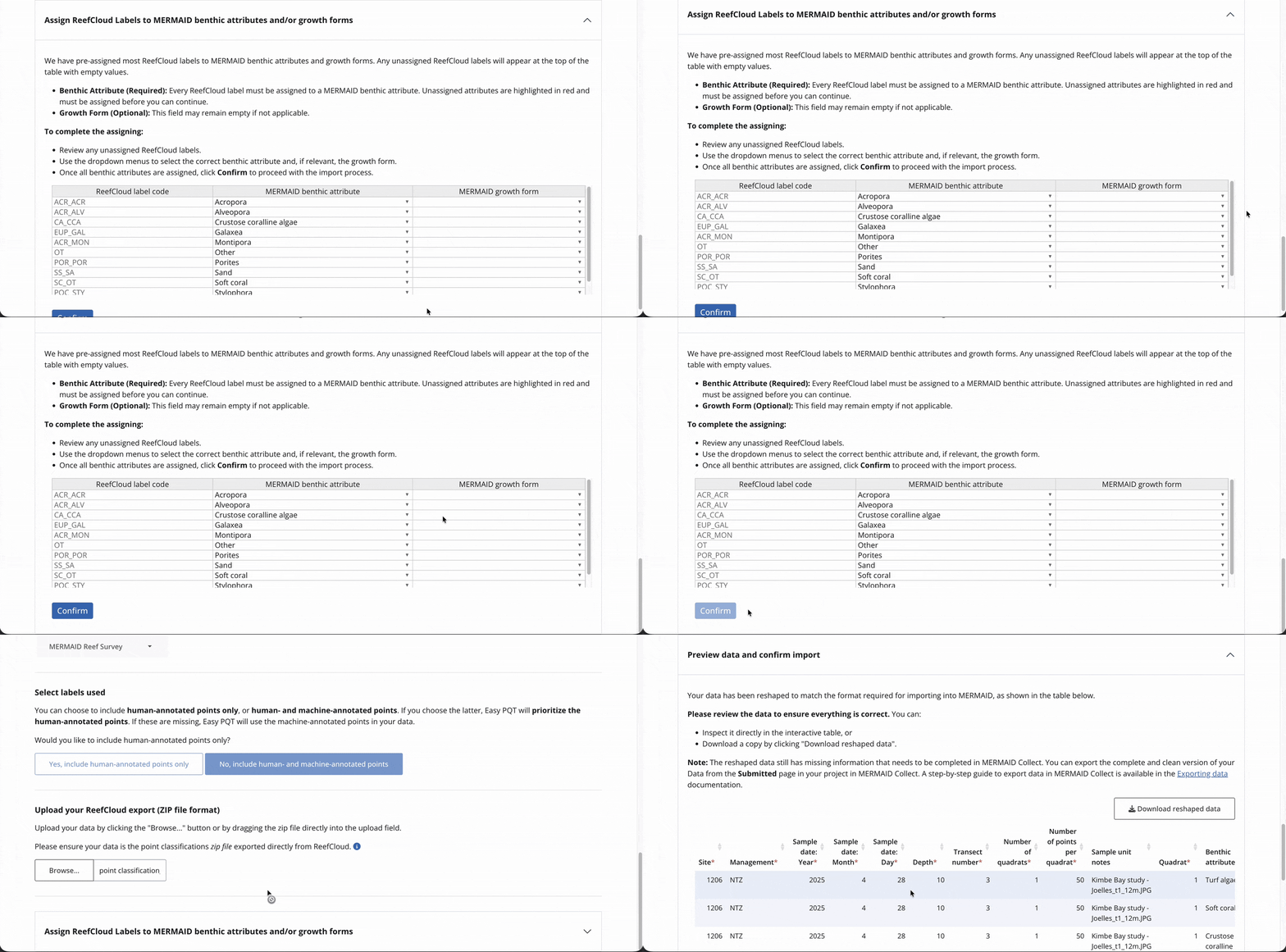
Step 7: Review and import data into MERMAID
Once your data is reshaped and validated, click Import data.
Alternatively, you can restart by clicking on the Restart Easy PQT button or get help by clicking on the Get help button if something doesn't look right.
You can also download the reshaped dataset as a CSV by clicking on Download reshaped data on the top right of the table.
Once the importing process is complete, you’ll receive a confirmation message on your screen: Import successful!
You can either close the window or scroll to the bottom and click on Go to MERMAID Collect to finalize the import process in MERMAID Collect.
Note: The reshaped dataset will still have missing values (i.e., depth, transect length, and quadrat size) that you will need to complete in MERMAID Collect. Export the complete and clean dataset through the Submitted page in your project. |

Step 8: Complete sample units in MERMAID Collect
Go to your Collecting page in your project.
Complete required fields: transect length and quadrat size.
Verify observer info. MERMAID will automatically assign you as the observer. You can change the observer if someone else collected the data.
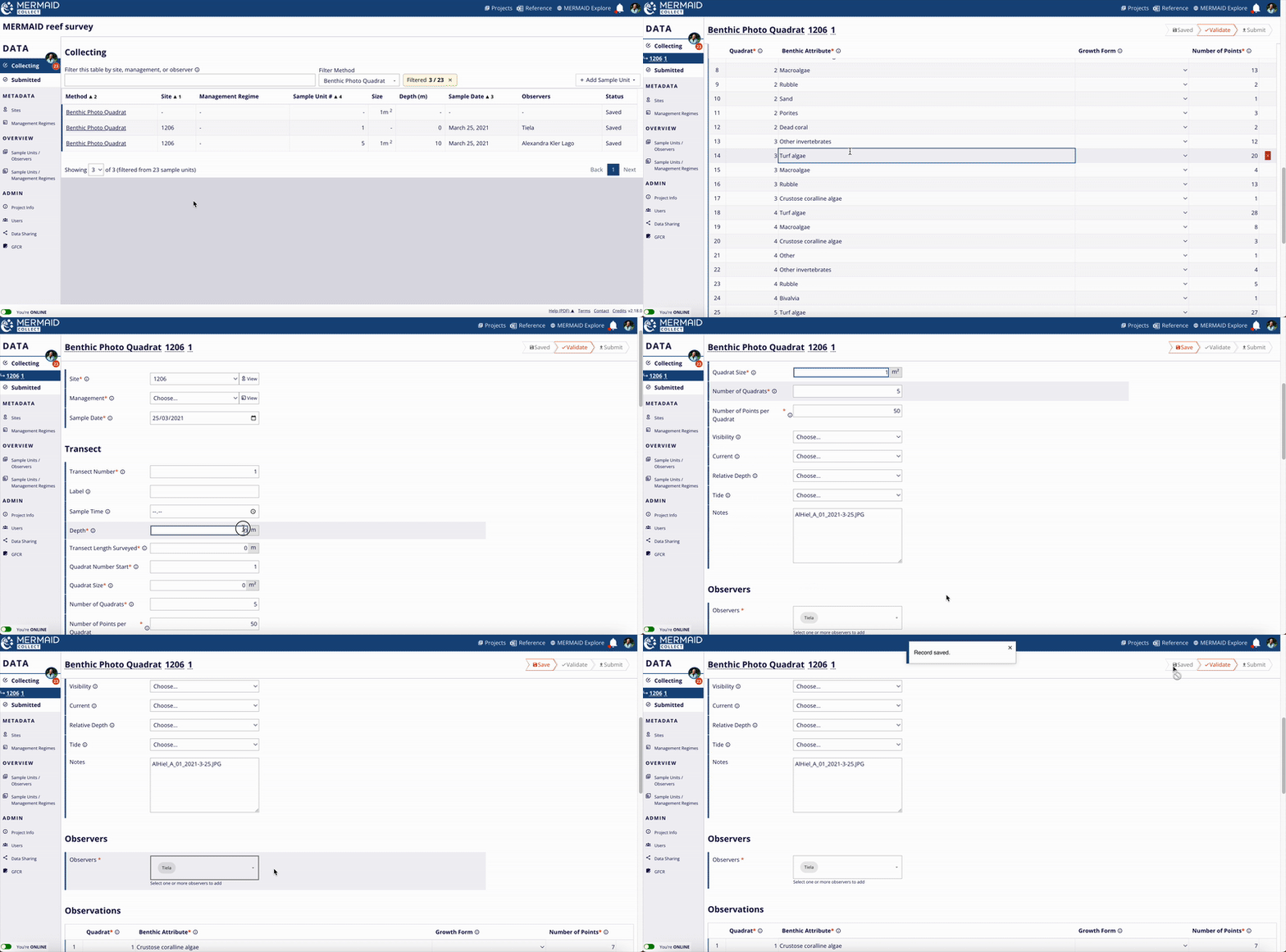
Validate each individual sample unit.
Submit each validated sample unit.
Once submitted, sample units become available to all project’s users in the Submitted page.
Note: Imported data appears under your account in your personal Collecting page of the assigned project. If needed, a project Admin can transfer all sample units to another user via the project’s Users page. Read more about transferring sample units in Editing Data. |
Do you prefer a code-based workflow in R?
For R users, see Importing Legacy Data into MERMAID.